
What this does
A payroll runcalculates one pay period's salaries for your employees — gross, statutory deductions and net pay — and produces the outputs you actually send out: each employee's salary slip and a bank disbursement file you upload to your bank to pay everyone at once. WorkRight computes the statutory pieces for you: EPF (12% on basic, capped at ₹15,000 of basic per EPF Act §6), ESI (where the employee is within the ₹21,000 gross ceiling, per ESI Act §39), Professional Tax for your state, and TDSon the income-tax regime. You don't hand-key those amounts.
Who can do it
- Role: an HR admin (a
company_adminorhr_manager). Payroll is not visible to regular employees. - Plan:the Payroll module must be enabled on your plan. If it isn't, the menu item is hidden — see pricing.
- 2FA: locking a run uses step-up two-factor (TOTP), so make sure 2FA is set up on your account first.
Before you start
Each employee needs the salary fields filled in — at minimum Basic and HRA, plus PF/ESI/PT applicability and (for the bank file) bank account and IFSC. You set these on the employee profile, or in bulk via CSV import. Also set your Professional Tax state in Workspace Settings so the right PT slab applies.
Steps
 Click to enlarge
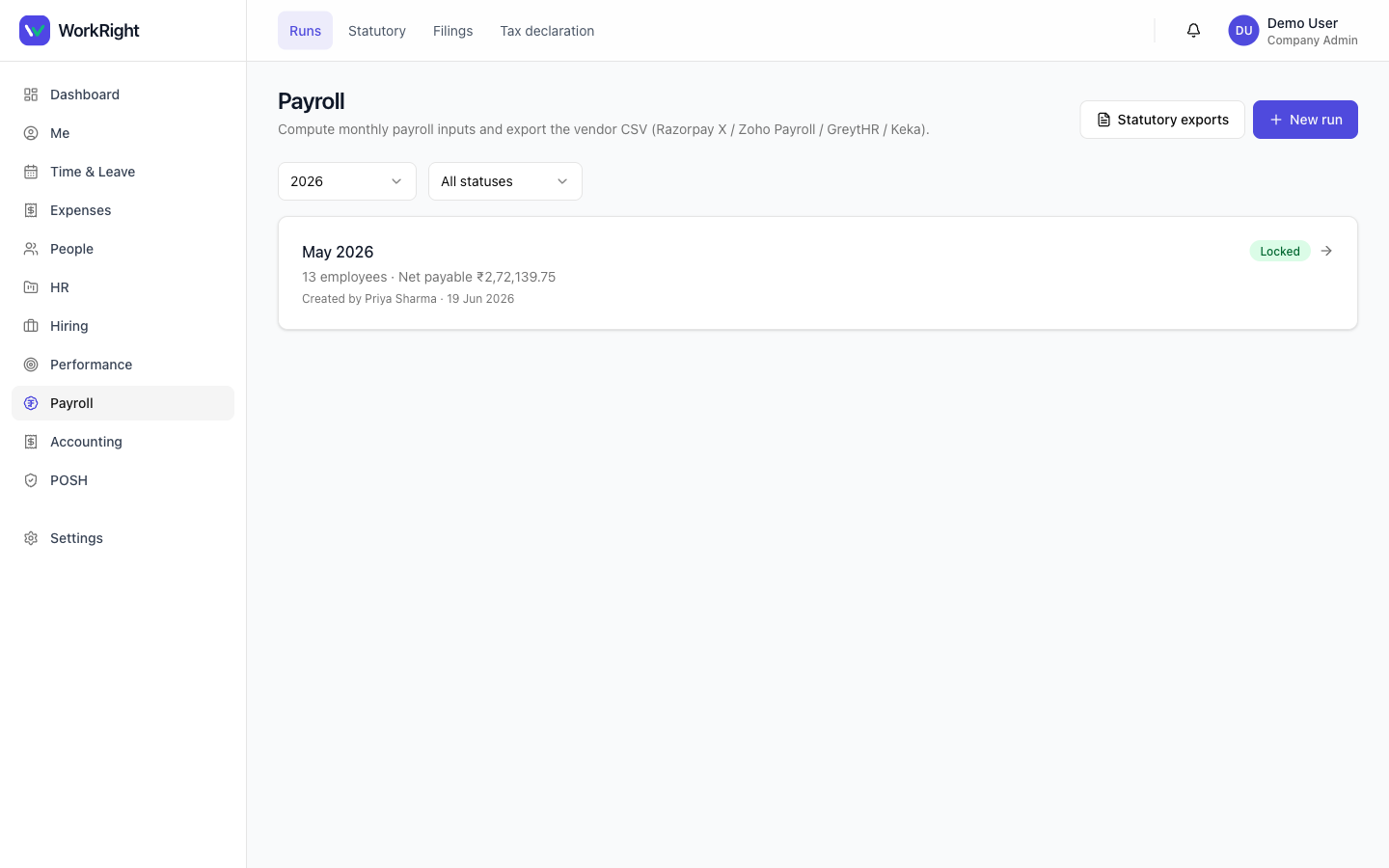
- In the dashboard sidebar, open Payroll and click New run.
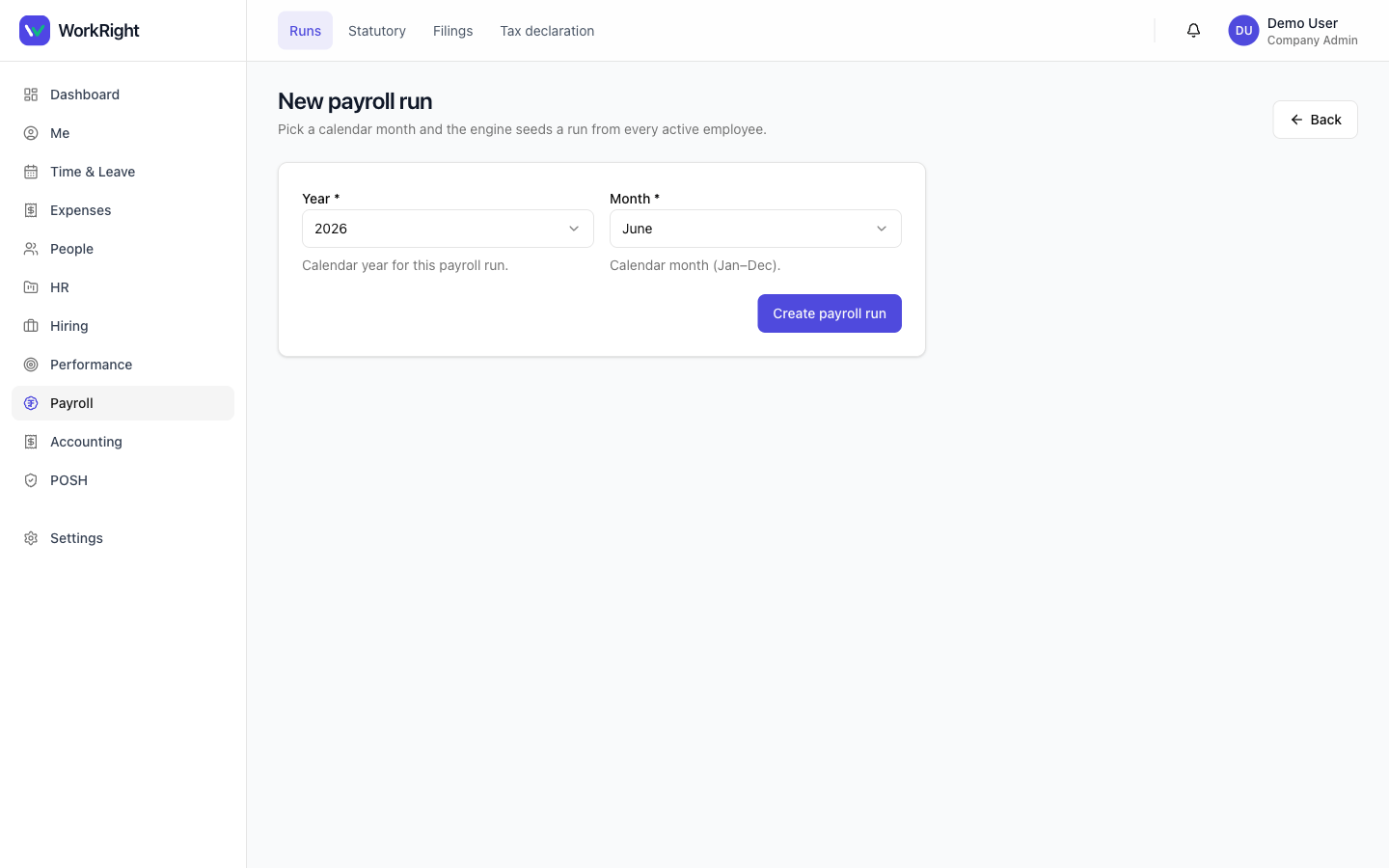
- Pick the pay period (month) and create the run. WorkRight generates a line per eligible employee with gross, EPF/ESI/PT/TDS deductions and net pay calculated.
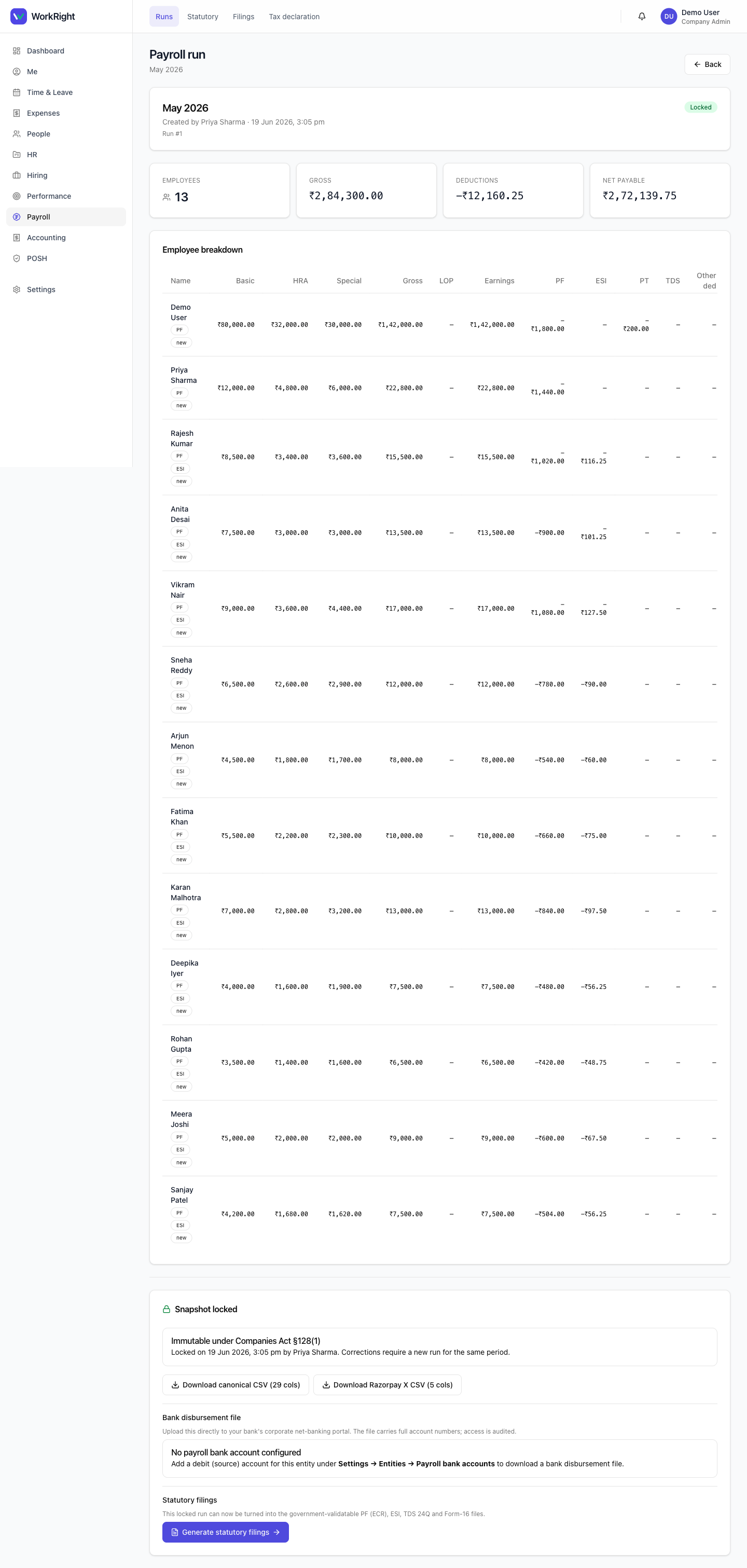
- Reviewthe run. Open it to check each employee's figures. Where you need to, add a per-employee override (e.g. a one-off deduction or adjustment). Attendance-driven loss-of-pay and overtime flow in automatically if you use Attendance.
- When the numbers are right, click Lock. You'll be asked for your 2FA code. Locking writes a permanent snapshot of the run.
 Click to enlarge
What happens next
Once locked, the run is immutable— it can't be edited or deleted, because a locked payroll run is a statutory record under Companies Act 2013 §128(1). From the locked run you can:
 Click to enlarge
- Download salary slips — a Payment of Wages Act §13A-compliant PDF per employee, regenerable byte-for-byte from the locked snapshot. Employees can also download their own.
- Download the bank file — a NEFT/bulk-transfer file (generic NEFT, or HDFC / ICICI / SBI formats) to upload to your bank so everyone is paid in one go.
If you spot a genuine error after locking, you handle it in the nextrun with an adjustment rather than editing a locked one — that's what keeps the books audit-clean.
Related
- Add or onboard an employee — set up the salary fields payroll needs.
- Payroll software for India — what the module covers.