
What this does
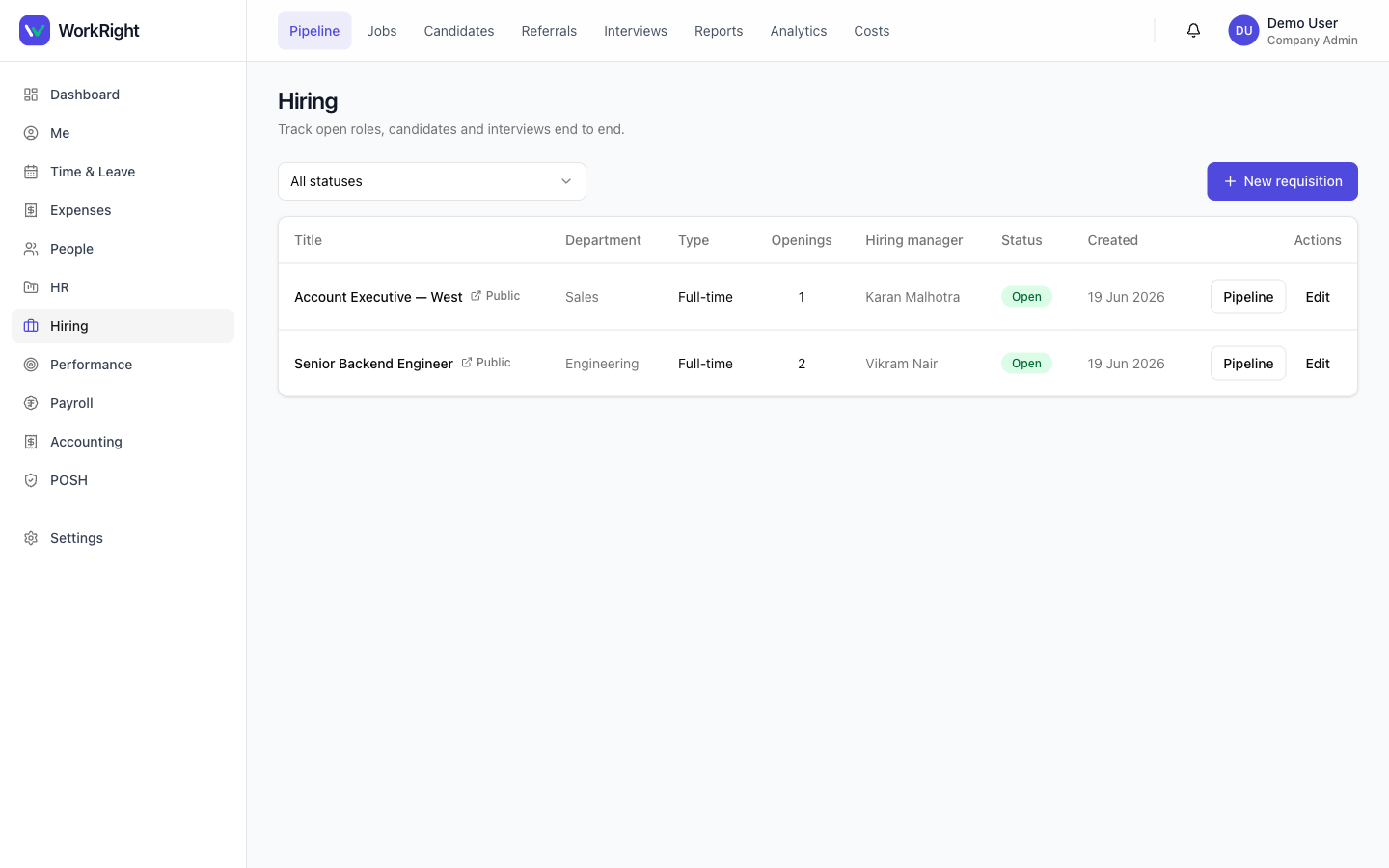
This is the second half of the Hiring module — everything you do with a candidate once they're in your pipeline. You schedule interviews (with a calendar invite and a meeting link), score the panel against a reusable scorecard, draft a CTC-breakup offer the candidate can accept online, and brand your public careers page. You can also email candidates, handle referrals, and read hiring analytics and costs.
 Click to enlarge
Who can do it
- Role: an HR admin (
company_adminorhr_manager) sets up scorecards, careers branding and emails, and sends offers. Interviewers see and score the interviews assigned to them. - Plan: the Hiring module must be enabled on your plan — see pricing.
- Approvals (optional):if your workspace requires approval to send an offer, the offer can't go out until an approver signs off — and editing the CTC of an approved offer re-requires approval. A submitter can never approve their own offer.
- Consent:automated candidate emails only go to candidates who've given consent (DPDP) — others are simply not emailed.
Interviews & scorecards
- From a candidate's profile, choose Schedule interview and add a meeting link. WorkRight sends a calendar (ICS) invite; if you'd rather, use Propose slots to let the candidate self-schedule from times you offer.
- Interviewers see their interviews under Interviews with a status (Scheduled, Completed, Cancelled, No Show), a Join video call button, and a Drop feedback action.
- Set up a scorecard templatein Settings — name it (e.g. "Engineering panel") and add the attributes the panel rates (e.g. Problem solving, Communication). Each attribute is scored 1–5.
- Keep job descriptions consistent with reusable JD templates (title, department, job description) you can apply when creating a requisition.
Making an offer
- On the candidate's application, draft an offer: enter the Annual CTC (₹) and a Joining date.
- Optionally add a CTC breakup — add components (Basic, HRA and so on) with an amount and a Monthly or Annual period, or use Suggest split to derive a statutory-aware split. The components must total the CTC exactly; the breakup prints as an annexure on the letter and pre-fills payroll on hire.
- If approvals are on, Submit for approval first. Then Generate & send letter — WorkRight builds the offer-letter PDF and marks the offer sent.
- Share the candidate's e-accept link with Copy offer link. The candidate opens a secure, single-use public page and acceptsby typing their name to e-sign — no login needed. You'll see when the offer was opened and how it was accepted (e-signed online or recorded by HR).
- When you Hirefrom the candidate's profile, the new employee gets a one-time password and the accepted CTC flows into payroll.
Careers page, emails & referrals
- Careers branding (Settings) — set an accent colour (hex), a short company blurb shown above your open roles, and upload a logo(PNG, JPEG or WebP, up to 2 MB).
- Candidate emails (Settings) — toggle automated emails for Application received, Interview scheduled and Offer sent, and edit the templates. Placeholders like
{{candidate_name}},{{role}}and{{company}}are filled in when the email is sent. Emails only go to consented candidates. - Referrals — employees refer people from the Referrals page; you Convert or Reject each one. When a referred candidate is hired, the advertised bonus is added to the open payroll run.
What candidates see
Candidates never see your internal stages, scores, feedback or offer amounts they haven't been sent. A candidate-facing status link shows only a coarse, high-level status (it never leaks your stage names), the self-scheduling slot picker shows only the times you offered, and the e-accept page shows only their own offer. This keeps the candidate experience clean and your process private.
Tips
- Use Suggest split on the CTC breakup — it sums to the CTC exactly, so the offer letter and payroll always agree.
- An offer that was sent but not opened after a few days surfaces a nudge — follow up before the candidate goes cold.
- Track spend in Costs and conversion in Analytics / Reports — funnel, time-to-hire, offer acceptance and cost-per-hire are computed for you.
Related
- Post jobs & manage your candidate pipeline — open a role and collect candidates first.
- Add or onboard an employee — what happens after a candidate accepts.
- Recruitment software for India — what the Hiring module covers.