
What this does
The Hiring module is your applicant tracking system. A requisition is one open role — its title, department, location, employment type and number of openings. List it on your public careers page and candidates can apply online; you can also add candidates yourself or convert employee referrals. Every applicant becomes an application that you move across a pipelineof stages until they're hired, rejected or withdrawn. A per-requisition report shows how the role is tracking.
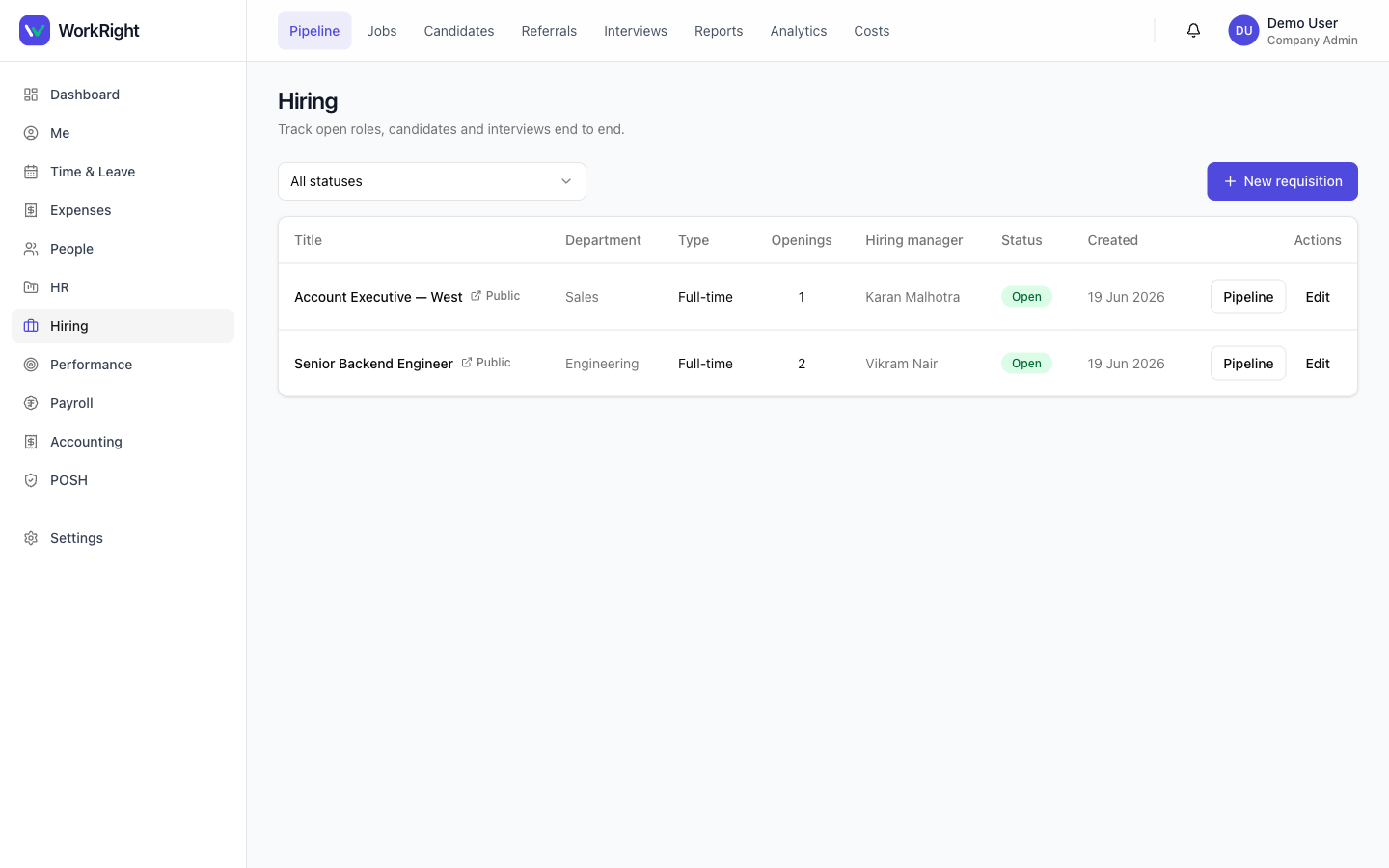 Click to enlarge
Who can do it
- Role: an HR admin (a
company_adminorhr_manager) manages everything. A role's hiring managercan manage that requisition's pipeline. The full Candidates talent pool is HR-admin only. - Plan:the Hiring module must be enabled on your plan. If it isn't, the menu item is hidden — see pricing.
- Approvals (optional):if your workspace requires approval to open a requisition, it can't move to Open until an approver (a company admin or HR manager) signs off — and a submitter can never approve their own request.
Steps
- In the dashboard sidebar, open Hiring, go to Jobs and click New requisition.
- Fill in the role: Job title, Department, Location, Employment type (Full-time, Part-time, Contract or Intern), number of Openings and a Hiring manager. You can start from a saved JD template to pre-fill the title and job description.
- Optionally set a Referral bonus (advertised to employees on the Referrals page and snapshotted when a referred candidate is hired) and add screening / knockout questions applicants answer when they apply.
- Tick List on the public careers page and set the status to Open. Only a role that is both open and public appears on your careers page for candidates to apply to.
- As applicants arrive, open the role's Pipeline and drag each application across the stages. Rejecting an application needs a reason. The actual hirehappens from the candidate's profile, not the board.
Where candidates come from
Your Candidates list is the talent pool feeding every pipeline. Candidates land there by:
- Careers page — someone applies online to an open, public role (with consent).
- Manual add / import — you add a sourced candidate yourself, or bulk-import a list.
- Referral — an employee refers someone via the Referrals page and you convert it to a candidate.
You can filter the list by source (Careers page, Added manually, Referral, LinkedIn, Naukri, Other). Each candidate's profile shows their email, phone, source, consentstatus, résumé and the requisitions they've applied to.
Reading the pipeline report
Open a requisition and choose View report for a per-role snapshot: how many candidates Applied, are in pipeline, were hired, rejected or withdrawn, the average time-to-hire, a breakdown by source and a stage funnel. You can download a CSV of the applicant list for your own analysis.
Tips
- Use screening questions to triage volume — a knockout answer flags the application as not-shortlisted so you can hide it, rather than auto-rejecting anyone.
- Save a strong requisition as a template so the next opening for that role starts pre-filled.
- A role only goes public while its status is Open. Flip it to On hold or Closed to take it off the careers page without deleting it.
- Keep your careers branding(logo, accent colour, company blurb) set so the public page looks like you — covered in the offers & careers guide below.
Related
- Interviews, scorecards, offers & careers page — what happens once a candidate is in your pipeline.
- Add or onboard an employee — turn a hired candidate into an employee.
- Recruitment software for India — what the Hiring module covers.