
What this does
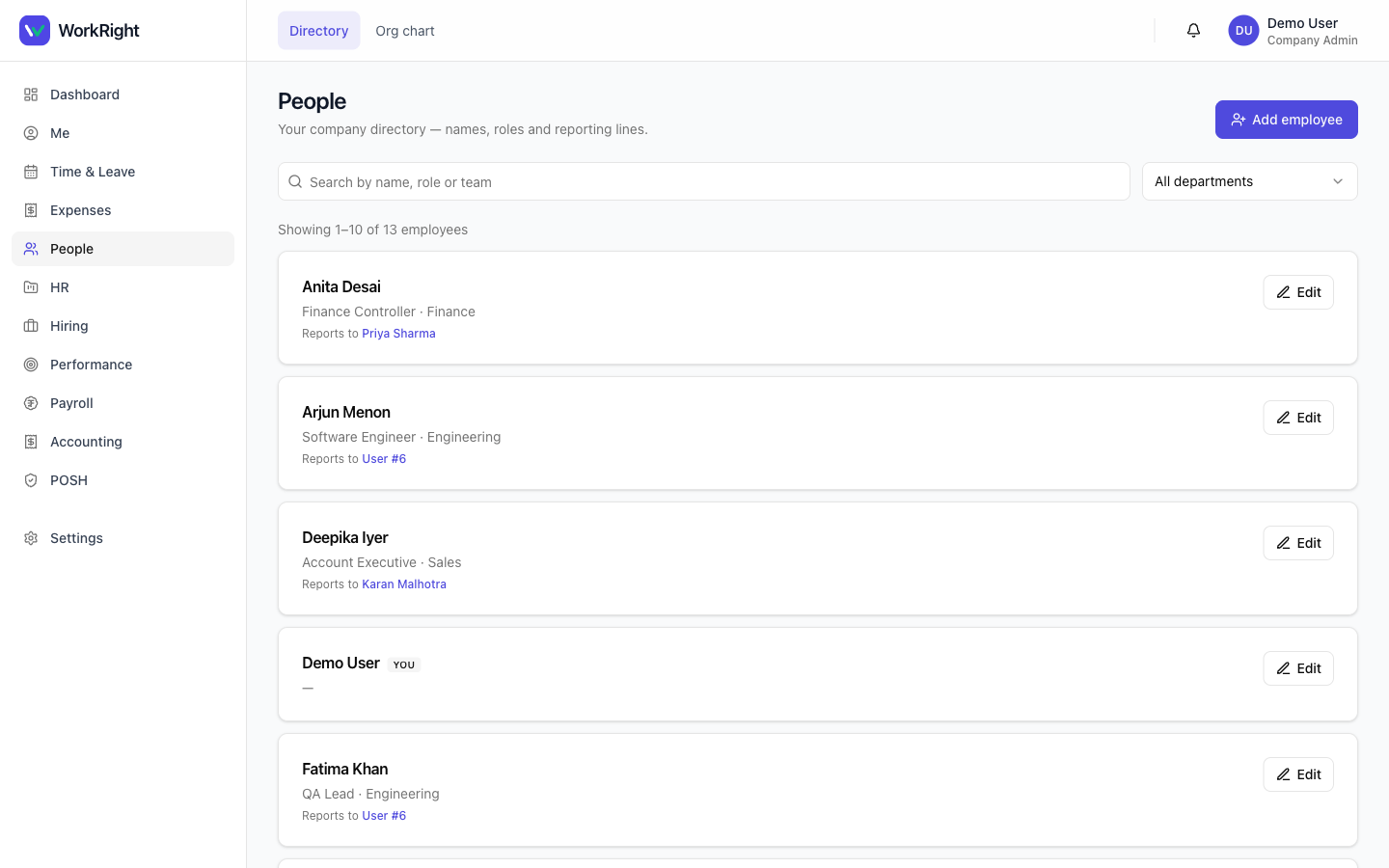
The People directory lists everyone in your company — name, designation, department and reporting line. Any signed-in colleague can search it to find who does what and who reports to whom. HR admins additionally get a visual org chart, the ability to open and edit any employee record, and an inbox of change requests employees raise about their own details. For day-zero setup or large updates, you can also bulk import from a spreadsheet.
 Click to enlarge
Who can do it
- View the directory: any signed-in employee. It shows non-sensitive roster fields only (name, designation, department, manager) and is not feature-gated.
- Add / edit employees and view the org chart: an HR admin (a
company_adminorhr_manager). The backend enforces this regardless of what the screen shows. - Raise a change request: any employee, about their own details. Approve one: an HR admin.
Find and open a person
- Open People from the sidebar. The directory loads with a search box and a department filter.
- Search by name, role or team, or pick a department to scope the list. Active colleagues are shown first; anyone deactivated is flagged Inactive so they still resolve as a recorded manager.
- Each card shows the person's designation, department and who they report to— the manager name links to that manager's row so you can walk the reporting line.
- HR admins see an Edit button per row to open and update the full record.
See the org chart (HR admins)
Open People → Org chartfor a visual reporting tree built from each employee's manager. Branches more than three levels deep are collapsed behind a +N more toggle — click to expand. Only active employees appear, and your own card is ringed so you can find yourself quickly. If someone is in the wrong place, fix their reporting manager on their employee record and the chart updates.
Keep records accurate with change requests
Rather than emailing HR, employees update their own sensitive details through a change request that HR reviews:
- The employee opens Change Requests → New request and picks the type — address (current and permanent) or bank account (account number and IFSC).
- They fill the new values and attach the required supporting document(s), then submit. Only one pending request per type is allowed at a time.
- HR opens the request, checks the attached proof, and approvesor rejects it with a note. On approval the employee's record is updated.
Keeping the bank account current here matters — it's the account the payroll bank file pays into.
Bulk-update many people at once
For day-zero setup or a large batch of edits, use Bulk Import. Download the CSV template, fill one row per person, upload it and review the preview — the importer reports all row problems at once — then commit. You can bulk-load employees, leave balances and training assignments the same way. See Add or onboard an employee for the full import walkthrough.
Tips
- Fill in each person's reporting manager — it powers the org chart, approval routing and leave/expense hierarchies.
- Deactivate leavers rather than deleting them, so historical records (who approved what, who held an asset) stay intact.
- Encourage employees to use change requests for address and bank updates — it gives you a documented, approved trail instead of ad-hoc emails.
Related
- Add or onboard an employee — create new records and bulk-import a team.
- Run your first payroll — pay the people in your directory.
- HR software for India — what the HR platform covers.